 FamiTask
 EN
 Español
 Català
 Galego
 Euskara
 Português
 Français
 Italiano
 Deutsch
FamiTask guide
Everything you need to get started as a family, in a few minutes.
1Just adults, or with kids too?
It's not a setting you choose: the mode is simply decided by whether you've added any kids to the family. Check your case and jump straight to what applies to you.
🧑🤝🧑 Adults only
A couple, a shared flat, or any group of grown-ups splitting the housework between you, with no kids involved.
You can skip the rest entirely: go straight to the board. Kids' mode, Activity and On a tablet are only for families with kids.
👧 Family with kids
The adults set the tasks and give the final okay; the kids do them and earn their own rewards.
Read Getting started and then The family to add them; after that, go straight to Kids' mode.
2Getting started
- Install the app on an adult's phone (the instructions are on the homepage) and create your account with your email.
- Create the family. The app gives you a code so the other adult can join from their phone.
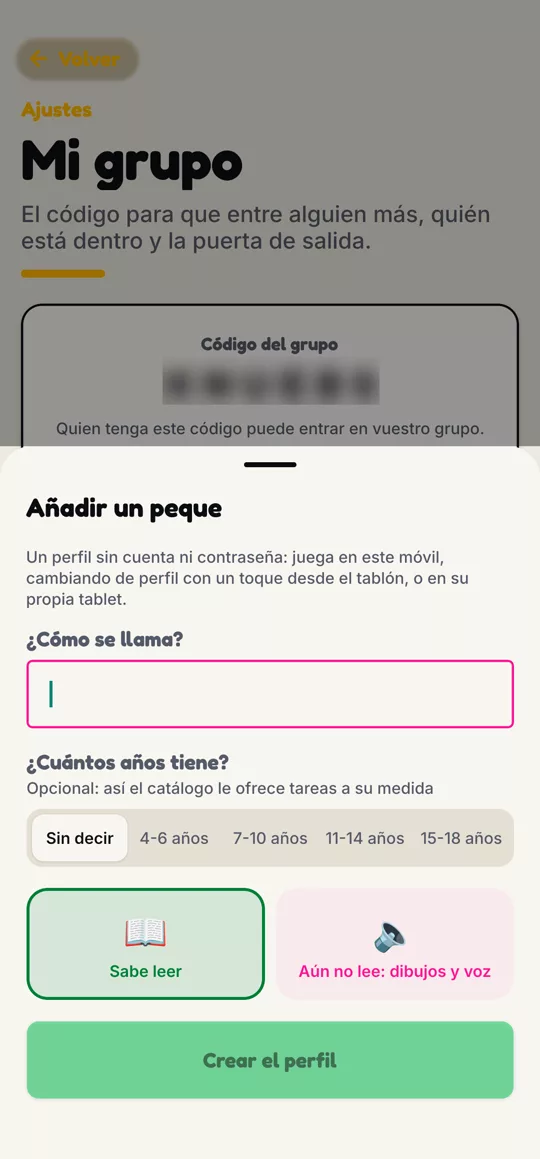
- If there are kids, add them. All they need is a name, which can be a nickname: they don't have an account or email.
- Choose how to split the tasks: the app suggests a few each day and you can add your own.
A family can have up to 8 members, adults and kids combined.
3The board
This is the main screen. At the top you'll see your coins, and below, the day's tasks sorted by time: in the morning, the morning routines; at night, the bedtime ones. Anything that isn't due at that time just doesn't show up.
What you can do with a task
- Take it: it becomes yours and no one else does it.
- Assign it: you offer it to another family member.
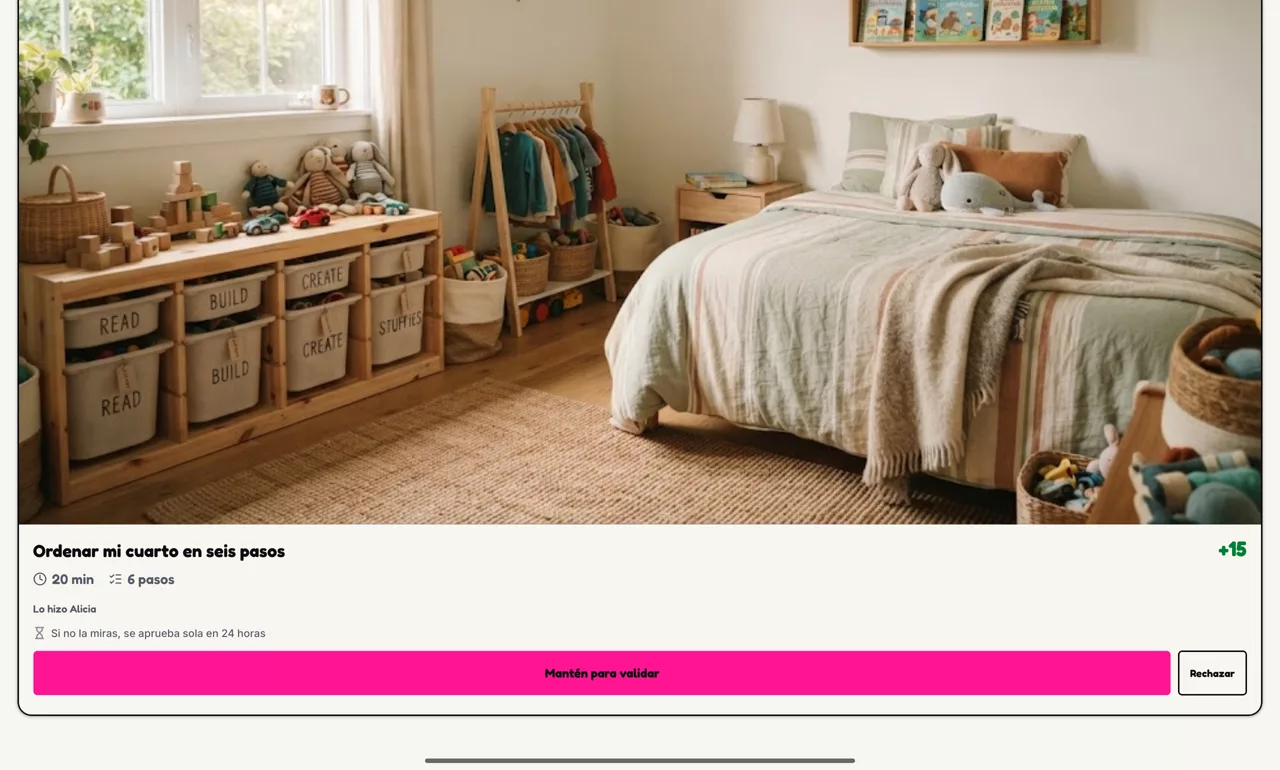
- Mark it done: another adult checks it, and that's when the coins are paid out.
If there's only one adult in the family, their tasks pay out as soon as they're marked done: there's no one else to check them.
4Tasks and step-by-step routines
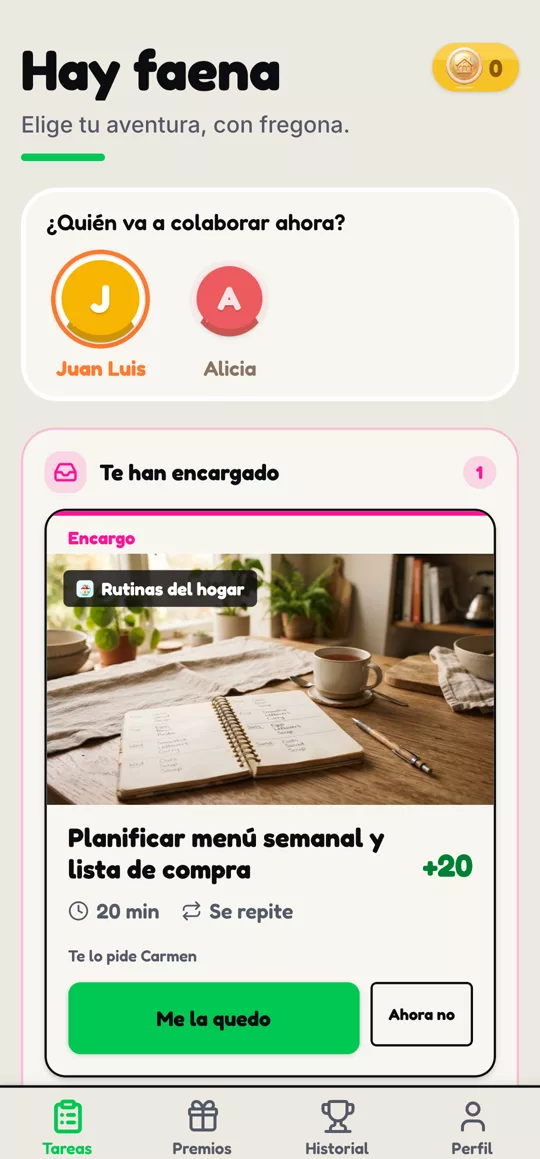
Tap Add on the board. You can pick from the catalogue, sorted by topic (clothes, tidying, pets, routines…), or make up your own under Custom.
- Who's it for? To the board, for whoever takes it, or straight to one of the kids.
- Repeats every day: a new task is born each day, with no need to set it up again.
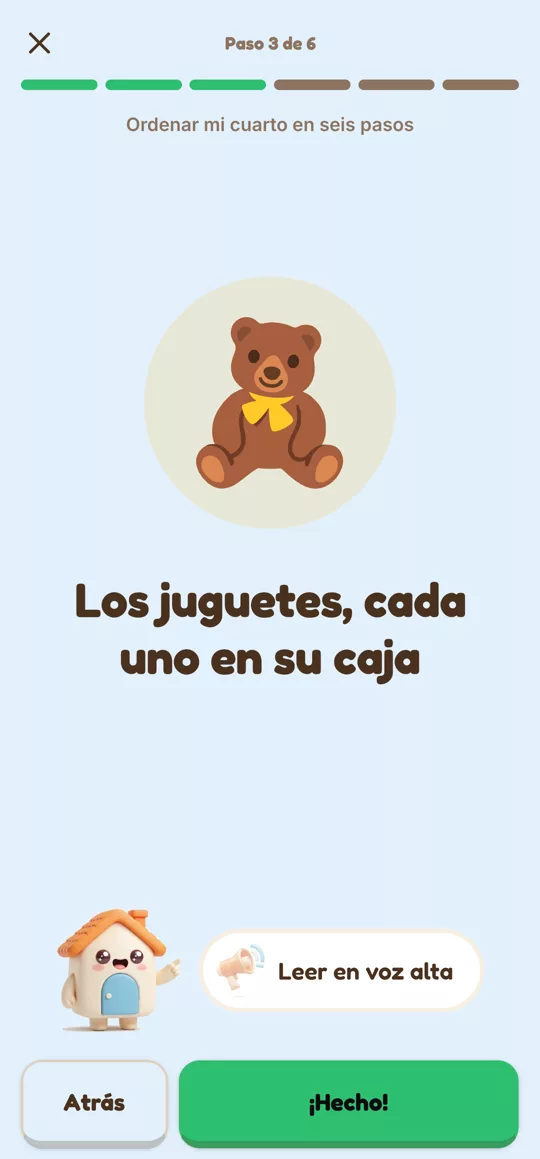
Routines and many kids' tasks come with step-by-step guidance: each step shown large, with its own picture and, if you like, read aloud. When it's done, the little house celebrates.
5Rewards
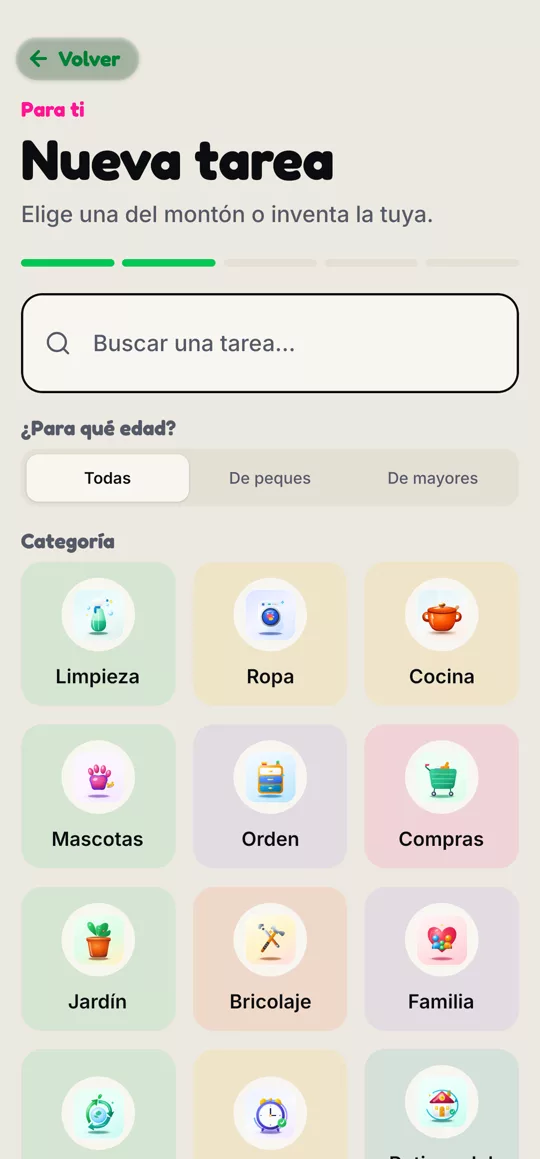
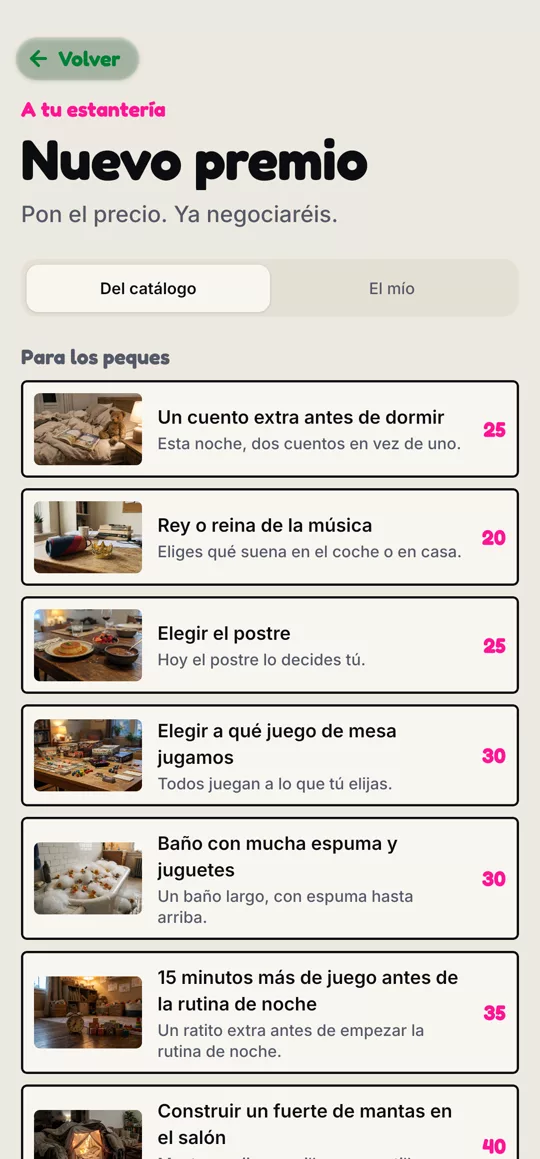
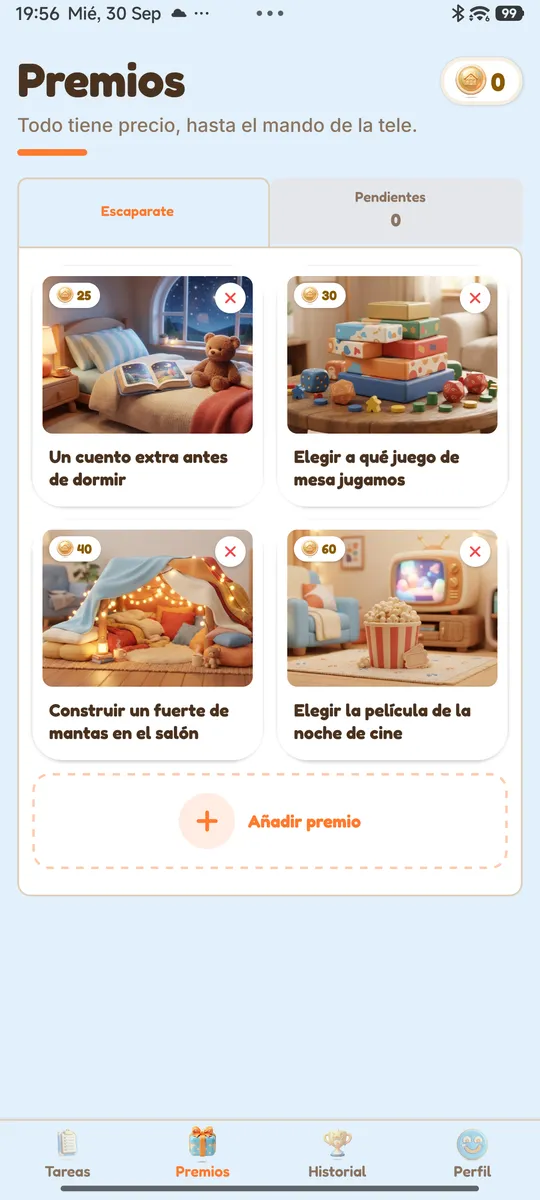
Coins can only be spent on rewards that you, the adults, offer. Each adult can have up to 8 rewards on offer at once.
- Tap Add reward and pick from the catalogue: it's split into rewards for the kids (an extra story, choosing the film, a blanket fort…) and for the whole family.
- Each reward has a price in coins. You can change it to suit you.
- When someone redeems a reward, whoever offered it gets a notification to make good on it.
There's also the family challenge, at the top of Tasks: an adult sets a reward for everyone (a dinner out, a day trip) and up to four tasks to do together. Everyone ticks off the ones they do, and once they're all done, the reward belongs to the family. No coins involved: the shared reward is the prize.
Tip: experiences beat objects, and never "more screen time". We explain why in responsible use.
6The family
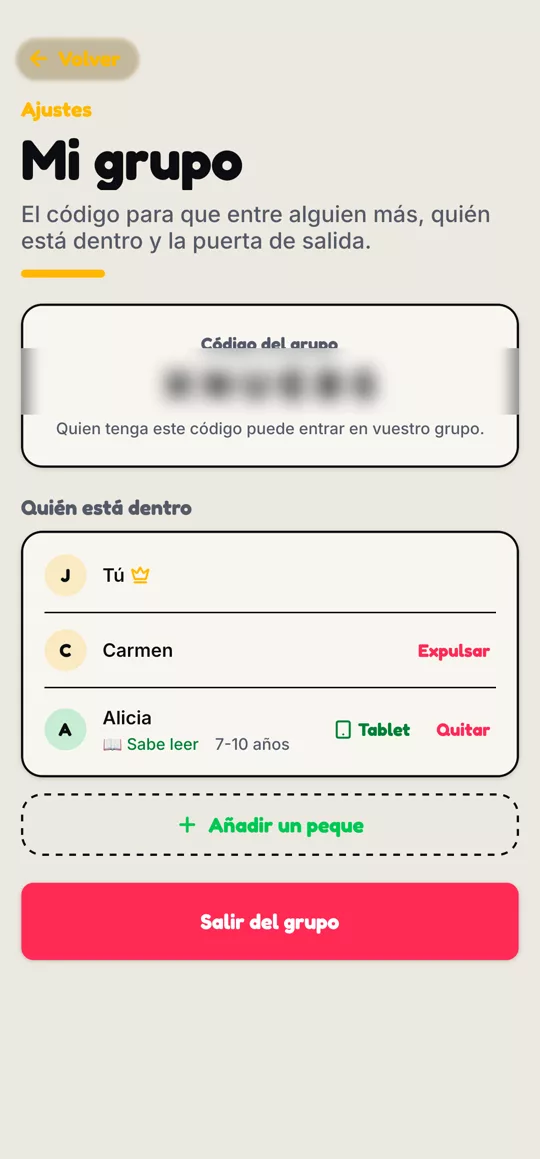
Under Profile › My group you'll find every member, the code to invite the other adult, and the kids.
- For each child you can set whether they can read or can't read yet. If they can't read yet, their screen carries less text and a speaker icon on each task and reward.
- When you add a child, you choose whether they can read; you can change it any time.
- With Tablet, a child can have the app on their own tablet, linked with a code.
- The family code is private: share it only with the other adult. When someone joins using it, the app notifies the other adults.
- Whoever created the group can remove an adult from the member list, in case someone who shouldn't have joined got in.
7Kids' mode
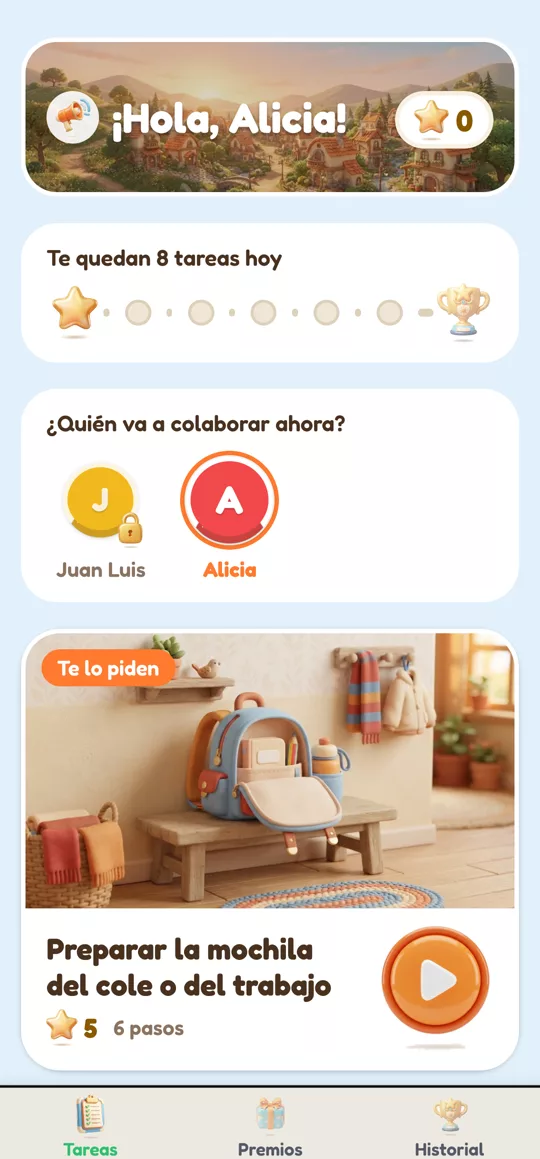
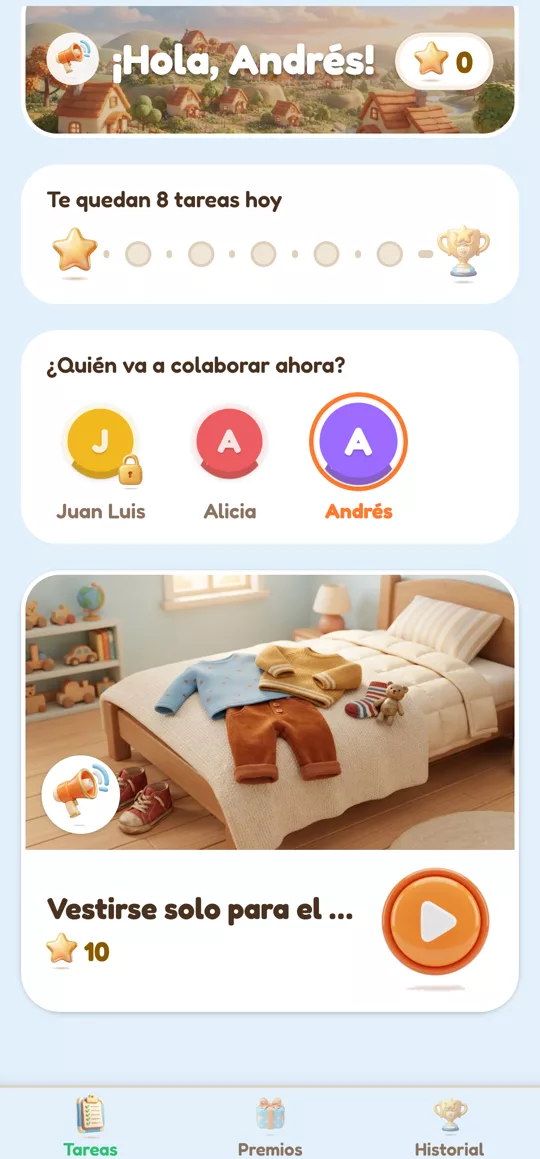
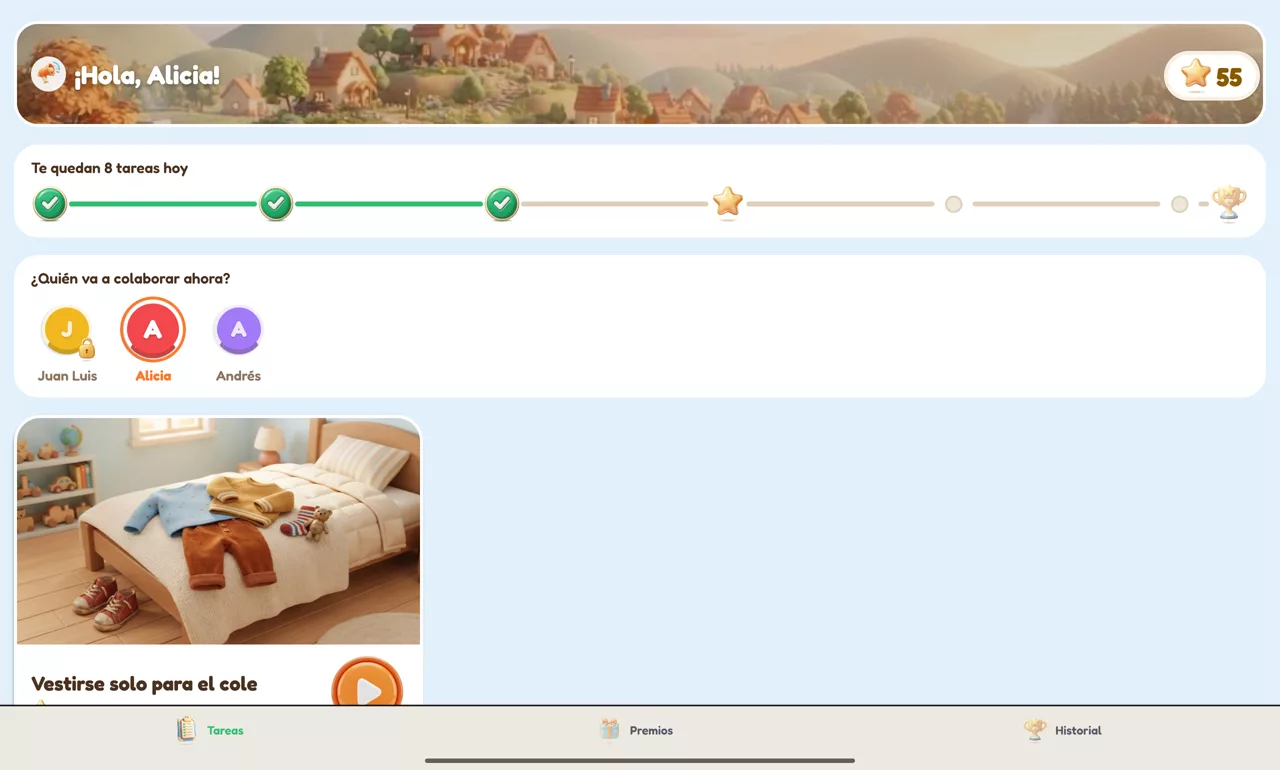
Kids use the app on an adult's phone or on a family tablet. At the top of the board, under Whose turn is it?, you pick the child (tapping their name greets them by it) and the app switches to their mode:
- They only see their own routines and what's been assigned to them, with big pictures.
- A round button to start each task; if it has steps, the step-by-step view opens.
- Next to their greeting there's a speaker that reads out loud what's left to do. If they can't read yet, every task also has its own speaker.
- They earn stars instead of coins. It's just how it's shown to them: the balance is the same, and you can switch it back to coins in Profile › Settings › The board if you prefer.
- Their history is simple: just the tasks they've done and what they've earned. They also have no Profile tab.
- They can't assign tasks, reject them, or approve anything.
Back to the adult
To leave kids' mode, the app asks for the adult's fingerprint. If the device has no fingerprint sensor (many tablets don't), it asks for the account password instead. After five failed attempts, it waits 15 minutes.
8Done… and on to a reward!
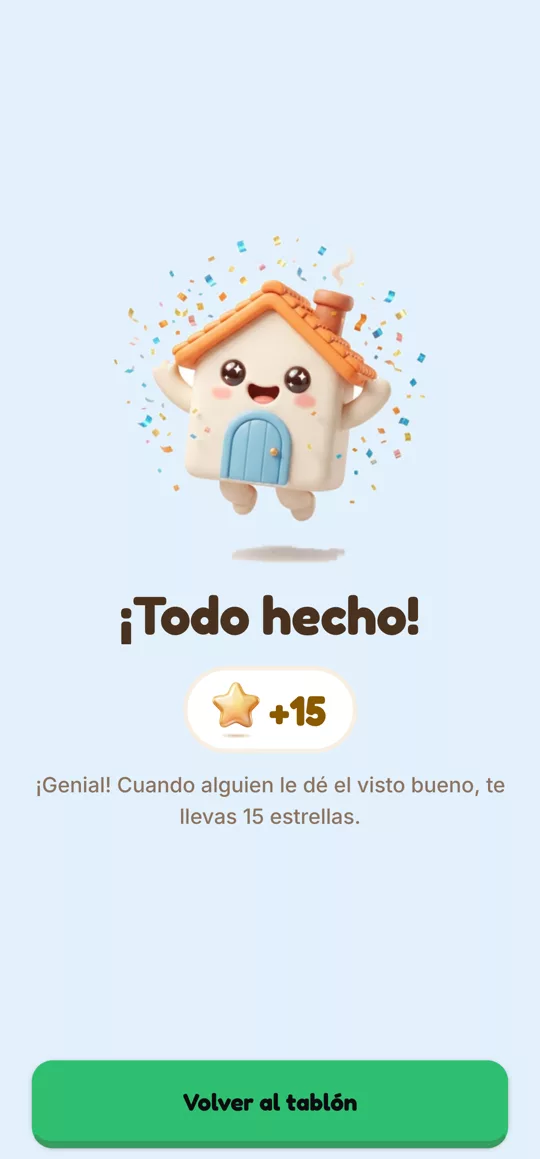
When the child finishes, the little house celebrates and the task waits for an adult's approval. That's when their stars get paid out.
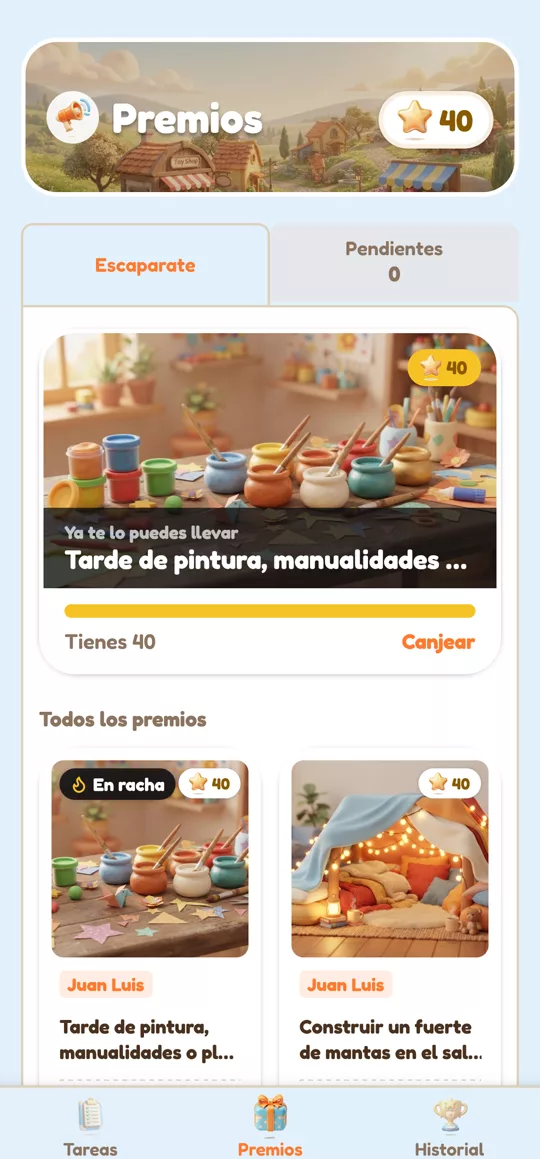
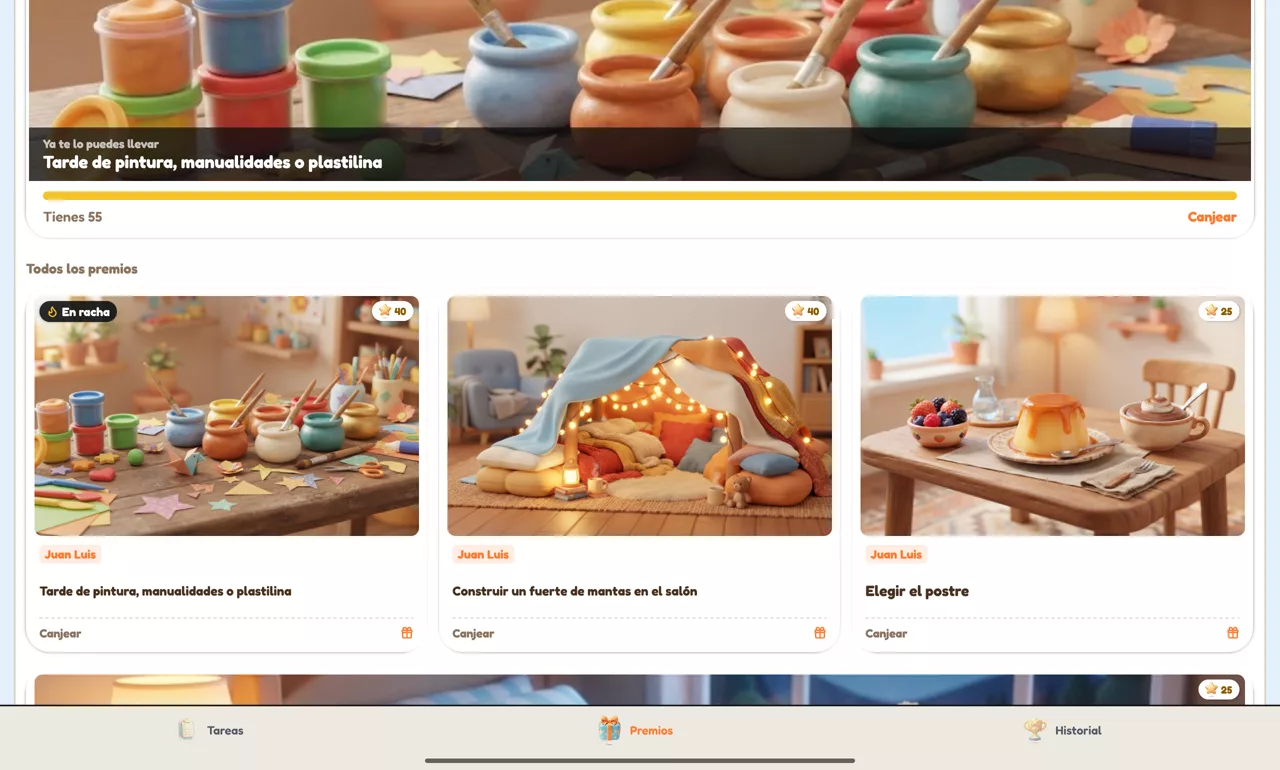
In their shop they only see the rewards meant for them, with the nearest one shown big and how much is left to reach it. If they can't read yet, tapping a reward makes the app say what it costs and whether they already have enough.
9Activity
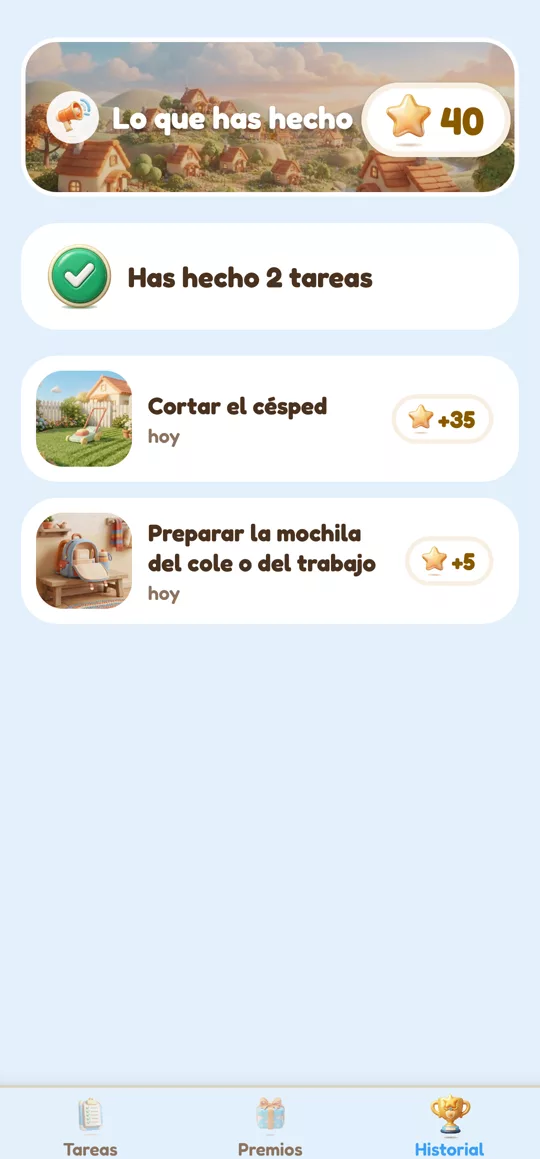
A child's history is just theirs and very simple: the tasks they've finished, with their picture, when they did them ("today", "yesterday", "Monday 28th") and the stars each one gave them.
No balances, purchases or weekly breakdowns: that stays in the grown-ups' history. With the speaker at the top, the app can tell them how many tasks they've done and how many stars they have.
10On a tablet
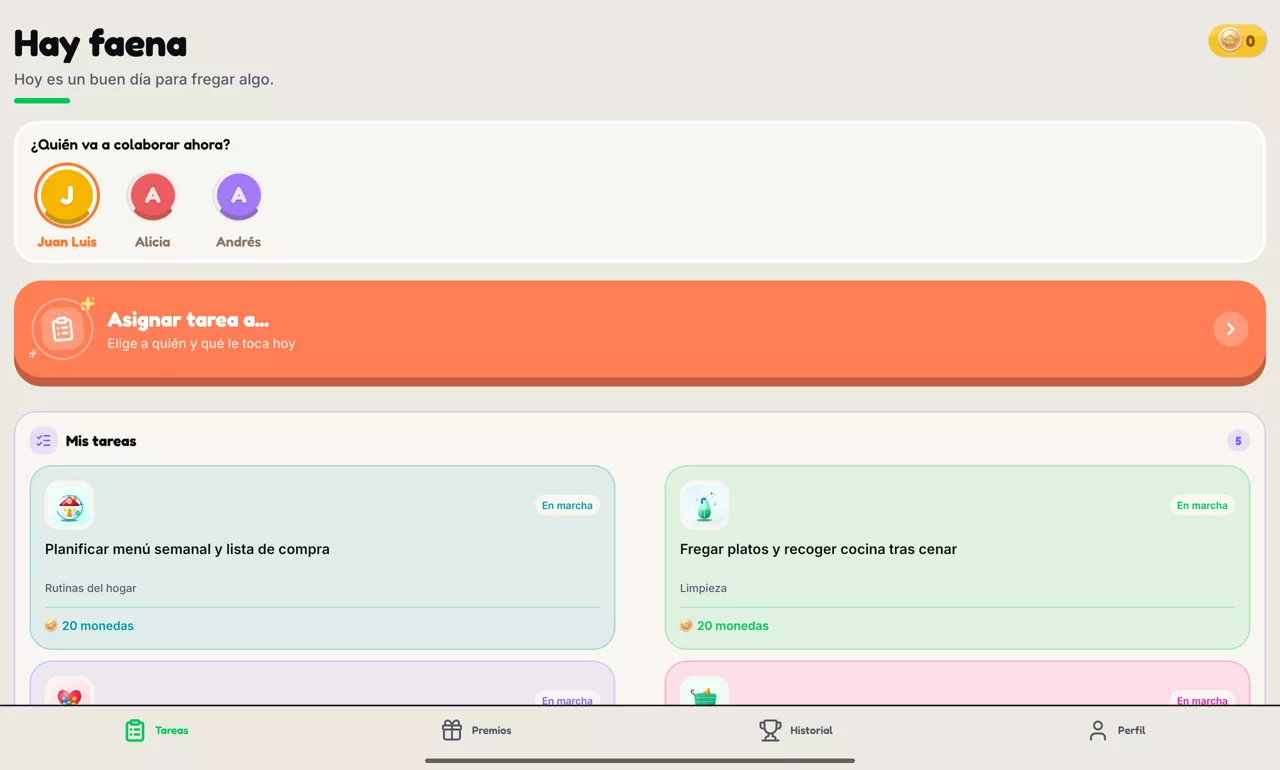
On a tablet the app rotates and makes the most of the width: tasks and rewards spread across two or three columns. We recommend keeping it landscape, in a fixed spot at home, with night mode on for the bedtime routine.
Since many tablets have no fingerprint sensor, getting back from kids' mode to the adult asks for the account password.
Anything unclear, or missing something? Write to us at famitask@lienzovirtual.com: we read every message.